
-
Shop by category
Explore all dealsExplore this collection for more finds.
View this find
- Amazon Best Sellers
- Under $25
-
Shop by brand
View all brandsExplore this collection for more finds.
View this find
-
eDeals & offers
Explore all dealsExplore this collection for more finds.
View this find
- Shopping guides
- Compare products Free tool
-
Shop by category
Explore all dealsExplore this collection for more finds.
View this find
- Amazon Best Sellers
- Under $25
-
Shop by brand
View all brandsExplore this collection for more finds.
View this find
-
eDeals & offers
Explore all dealsExplore this collection for more finds.
View this find
- Shopping guides
- Compare products Free tool
THE EVERYDAY EDITTech & Accessories
A Small Charging Troubleshooting Upgrade: Change One Part at a Time
Turn a vague charging problem into a repeatable sequence of comparisons, changing one part at a time and keeping a useful record of the results.
Explore the picks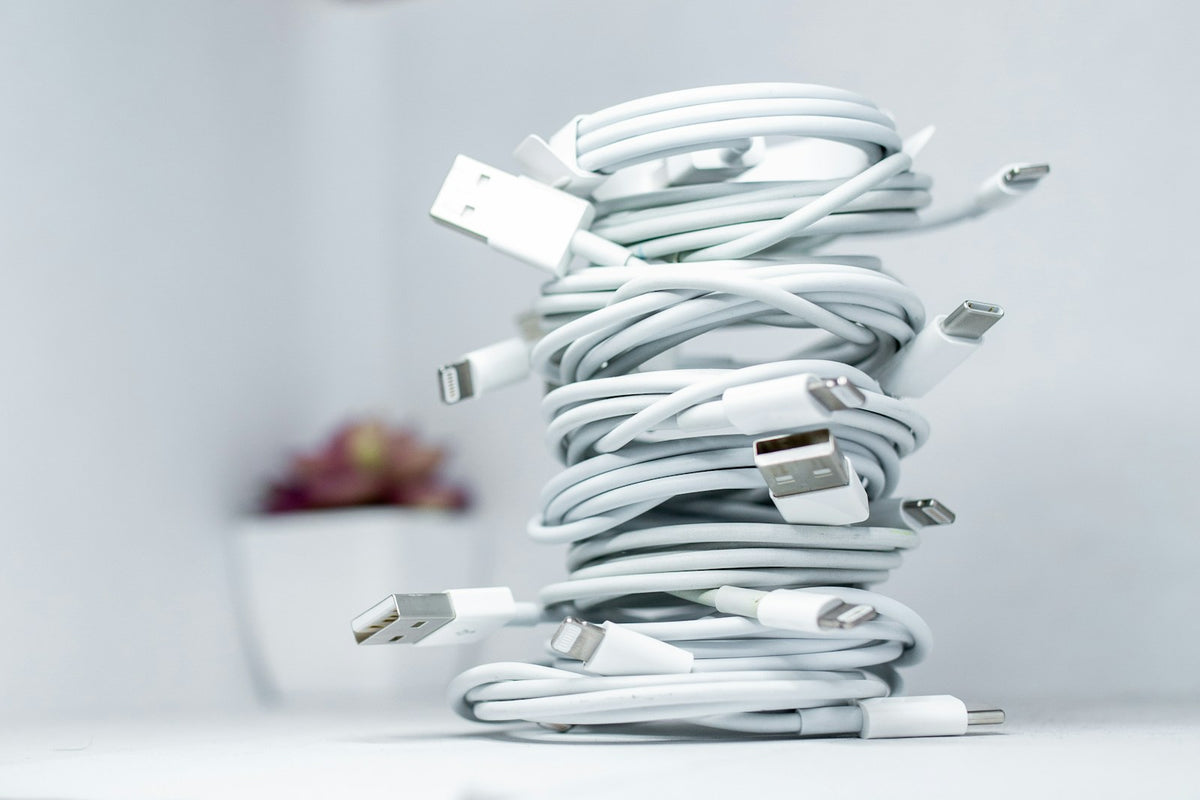
When a USB-C device charges slowly—or seems not to charge—it is tempting to unplug everything and try random combinations. That can change the symptom without revealing what mattered. A small upgrade to your troubleshooting routine is to establish a baseline, change one component at a time, and write down what happens. The aim is not to diagnose a fault from a single test, but to make the next comparison more informative.
Ad · We may earn a commission. As an Amazon Associate I earn from qualifying purchases.
Before: start with a vague impression
“It’s charging slowly” is hard to compare with a later test. Before unplugging anything, note the device, charger and cable in use, along with what the device reports. For example: “Tablet, USB-C wall charger, 6-foot cable; charging icon appears, but the displayed charge rate seems slow.” That short baseline gives you something concrete to revisit instead of relying on memory.
After: make the cable the only change
Keep the same tablet and charger, and substitute a cable you know works in a suitable setup. Note whether the charging indicator or reported rate changes; don’t swap the charger at the same time. If the symptom changes, that is a useful clue about the original cable or its connection, not proof of a particular defect. Record the result before moving to another test.
Separate the charger comparison from the device comparison
Next, make a distinct comparison with a known-working charger and the original cable. Then, if you have another compatible device, try the original charger-and-cable combination with it. Write down each pairing separately. For instance, if the tablet charges normally with another charger, while a second device also charges slowly with the original pairing, preserve both observations. They help narrow what to investigate; changing several parts together would blur the pattern.
Turn the results into a compact handoff
A simple three-column note—device, charger-and-cable combination, result—is enough to make a repeat test or support conversation more specific. Include what you actually observed, such as whether an indicator appeared, rather than labeling a component as broken. If you use the Anker 333 USB-C cable as one test option, its supplied description says it supports charging up to 100W with a compatible charger and does not support video output. Those specifications can add context to the record, but they do not identify the cause of your charging symptom.
Before you decide
- Record the original device, charger, cable and reported symptom.
- Change only the cable; note what changes.
- Make separate charger and second-device comparisons.
- Keep observations factual and tied to each combination.
A relevant item to explore

Anker USB C to USB C Cable, 100W Fast Charging Cable (2-Pack, 6 ft, Black)
The Anker 333 USB-C to USB-C cable is a relevant example for a cable-substitution test. Its supplied description identifies it as a charging and data-transfer cable, specifies support for charging up to 100W with a compatible charger, and states that it does not support video output. These details inform the test record, but do not establish why a particular device charges slowly or not at all.
View the exact item and current retailer offer →
Check the exact variant, seller, included pieces, care instructions and current terms. Purchases and checkout take place with the retailer.
Common questions
Why might a cable’s maximum wattage not match the rate I observe?
The Anker cable description specifies charging up to 100W when used with a compatible charger. That is a conditional capability, not a statement that every device-and-charger combination will charge at that rate.
Can I use this cable to connect a USB-C display?
The supplied description says the Anker 333 cable is for charging and data transfer and does not support video output. A charging test with it therefore would not establish whether a display connection works.
Explore this subject
Prepared by Biz E-Deals using product listing information and general shopping considerations. We have not personally tested the item. Listing information can change; confirm details with the retailer.
Lifestyle context photo: Photo by Solen Feyissa on Unsplash. The pictured setting and items illustrate the topic; exact featured products are shown separately in this guide.
Your next useful read
Explore shopping guides →
Tech & Accessories
How to Fit Wired Earbuds and Check Your Call Setup
A step-by-step routine for fitting silicone earbuds, checking listening and call performance, and managing a wired cord for daily use.
Read the guide
Tech & Accessories
Earbud Touch Controls: Map Calls, Music and Voice Commands
A practical guide to deciding whether an earbud’s touch controls suit the way you handle calls, music and voice commands across devices.
Read the guide
Tech & Accessories
A Small Charging-Station Upgrade: Give Each Cable a Job
A simple way to make a shared charging setup easier to use: assign cables to specific spots, then check length, compatibility and connection needs ...
Read the guideThe Biz E-Deals edit
Good finds. A little less searching.
Choose your email topics, start with our welcome guide, and join the list for upcoming curated editions.
Savings explained
More to discover
Choose my emails
Choose your email topics on the next page, then confirm in your inbox. Free and optional. No account needed. Privacy policy